Overview
There are three modes for installing and running the MDO Agent Deck framework: (A) Docker, (B) HPC, and (C) Native. Choose ONLY ONE mode to follow. If you are new to the MDO Agent Deck, we recommend Docker mode because it is the easiest option to set up and run on a local computer and requires no compilation.
In HPC mode, you must compile the DAFoam packages on the HPC system and launch the LLM client on the head node. The LLM client then submits jobs to compute nodes to run simulations and optimizations. In Native mode, you must also compile the DAFoam packages, but you launch the LLM client either on your local computer or directly on an HPC compute node. In this mode, the LLM client runs simulations and optimizations directly, without submitting batch jobs.
Mode A: Docker
This option works on Windows and macOS and is the easiest way to run agents on small cases. If you plan to run larger cases, such as wing aero-structural optimization, use either HPC or Native mode.
Step 1. Install an LLM Client
First, install an LLM client. Choose ONLY ONE of the following options: Desktop App, VS Code extension, or command-line interface (CLI). If you are a new user, we recommend the Desktop App option.
The MDO Agent Deck supports multiple LLM clients, including Claude, Codex, and Gemini. Install ONLY ONE client.
You need to create an account for the selected LLM and sign in with your subscription. Do NOT use API keys. If you already have a paid subscription to one of the following LLM providers, install its client. Otherwise, choose an LLM with a limited free usage quota (we recommend ChatGPT/Codex). Most free-tier LLMs limit usage to roughly 10 prompts per cycle and are suitable for evaluation only. A paid plan is required for production use.
Follow the instructions below to install an LLM desktop app.
First, download, install, and open VS Code.
In the left panel, click “Extensions” and search for your selected client, such as Codex, Claude Code, or Google Antigravity. Then click “Install” to install its VS Code extension.
Follow the instructions below to install an LLM CLI. Installation steps may differ by operating system and may require additional dependencies, such as Node.js.
Step 2. Install Docker Desktop
Download and install the Docker Desktop app for:
After Docker Desktop is installed, open it and keep it running. IMPORTANT: In Docker Desktop, go to Settings->Resources->Network and select Enable host networking. This configuration allows Docker to serve HTML pages for interactive visualization.
Then, open a terminal and run the following command to download the pre-compiled MDO Agent Deck image:
docker pull dafoam/agent:latest
If you want to install an older version, replace latest with a specific version tag such as v0.2.3.
Step 3. Download the working directory
Download the latest version of mdo_agent_work from here.
If you want to install an older version, download it from here, making sure it is consistent with the Docker image version above.
Unzip the archive. You will see a folder named mdo_agent_work-docker; rename it to mdo_agent_work. This will be the main working directory for your agents.
IMPORTANT: Do not manually create a folder to use as the LLM’s working directory. You must use mdo_agent_work because mdo_agent_work/results contains predefined LLM configuration files, which are hidden by default. You do not need to modify these files.
Installation is complete!
Step 4. Test the agents
Follow the instructions below for your selected LLM to test the installation by running a small case.
Codex Desktop App
-
Close both Docker and Codex Desktop apps. Then, open the Docker app first, wait until it is ready, and then open the Codex Desktop App.
-
Click “Choose project” and hover over “New project”. Click “Use an existing folder”. In the pop-up, select the
mdo_agent_work/resultsfolder. -
Then ask,
Is mdo_agent_deck's must_call_first tool available?Once the agent confirms the MCP status, you can ask questions such as,Generate a CFD mesh for the NACA2412 airfoil with 20K cells and yPlus 3. If it does not confirm the status, ask it to check again or close and reopen Codex. The agent will run the case in the background. -
Once the task is finished, you can click the links from the Trame or HTML servers to visualize the mesh results.
During agent execution, you may be asked for permission multiple times. To skip this, change the “Mode” below the chat box to “Approve for me”. IMPORTANT: The Approve for me mode may modify or damage system files. Use with caution!
NOTE: If you need to start a new chat, close and reopen Codex. This ensures that mdo_agent_deck is reset for the next case. Avoid running multiple cases in one chat window, as doing so uses many tokens.
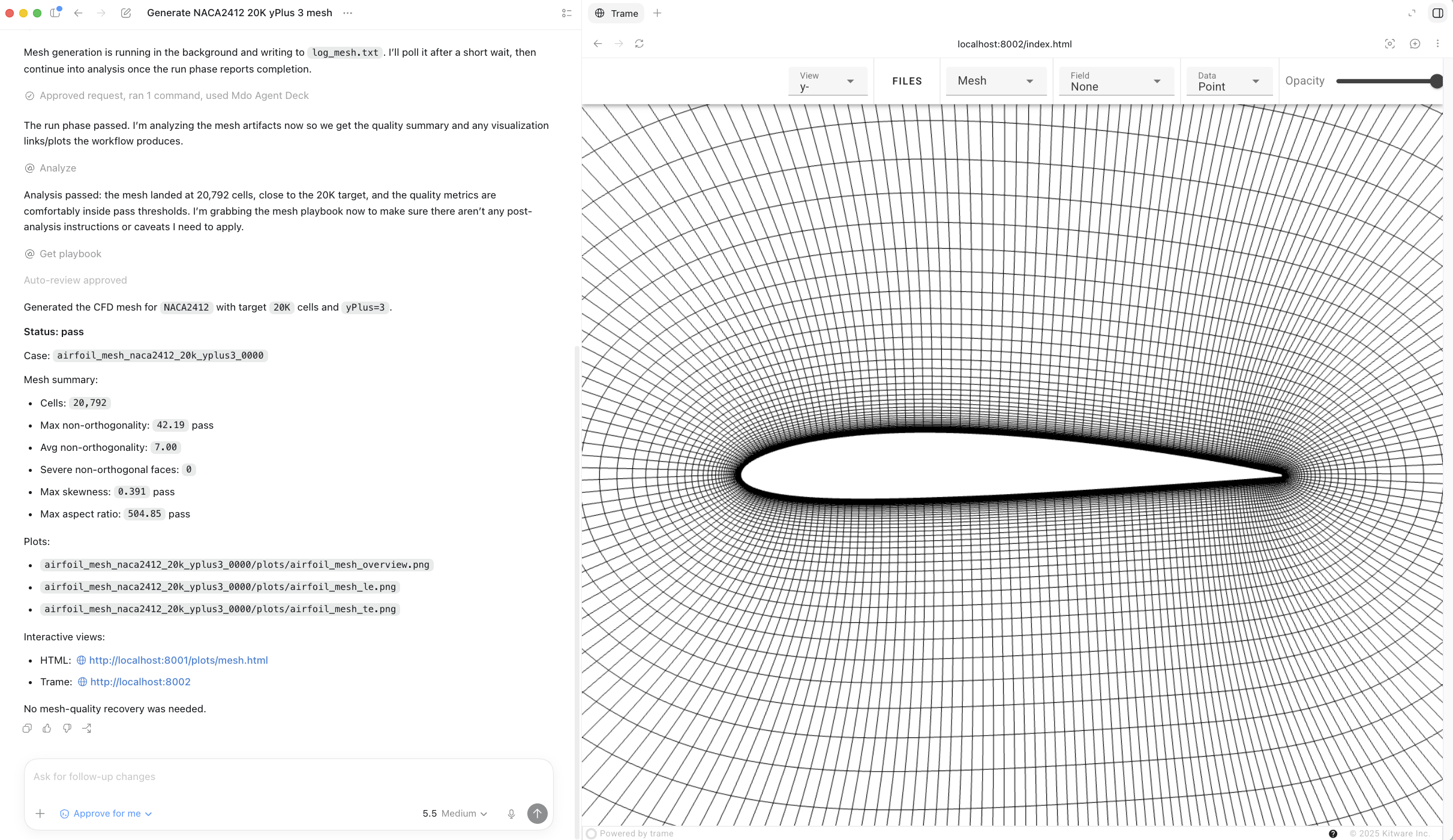
Fig. An example of the Codex interface
Claude Desktop App
-
Close both Docker and Claude Desktop apps. Then, open the Docker app first, wait until it is ready, and then open the Claude Desktop App.
-
In the top left, click the sidebar icon to expand it, then change the mode from “Chat” to “Code”.
-
Click the “Local” icon right above the chat box and select “Add another folder”. In the pop-up, select the
mdo_agent_work/resultsfolder. -
Then ask,
Is mdo_agent_deck's must_call_first tool available?Once the agent confirms the MCP status, you can ask questions such as,Generate a CFD mesh for the NACA2412 airfoil with 20K cells and yPlus 3. If it does not confirm the status, ask it to check again or close and reopen Claude. The agent will run the case in the background. -
Once the task is finished, you can click the names of the generated mesh pictures to view them in the app, or the links from the Trame or HTML servers to visualize the results.
During agent execution, you may be asked for permission multiple times. To skip this, change the “Mode” below the chat box to “Auto mode”. IMPORTANT: The auto mode may modify or damage system files. Use with caution!
NOTE: If you need to start a new chat, close and reopen Claude. This ensures that mdo_agent_deck is reset for the next case. Avoid running multiple cases in one chat window, as doing so uses many tokens.
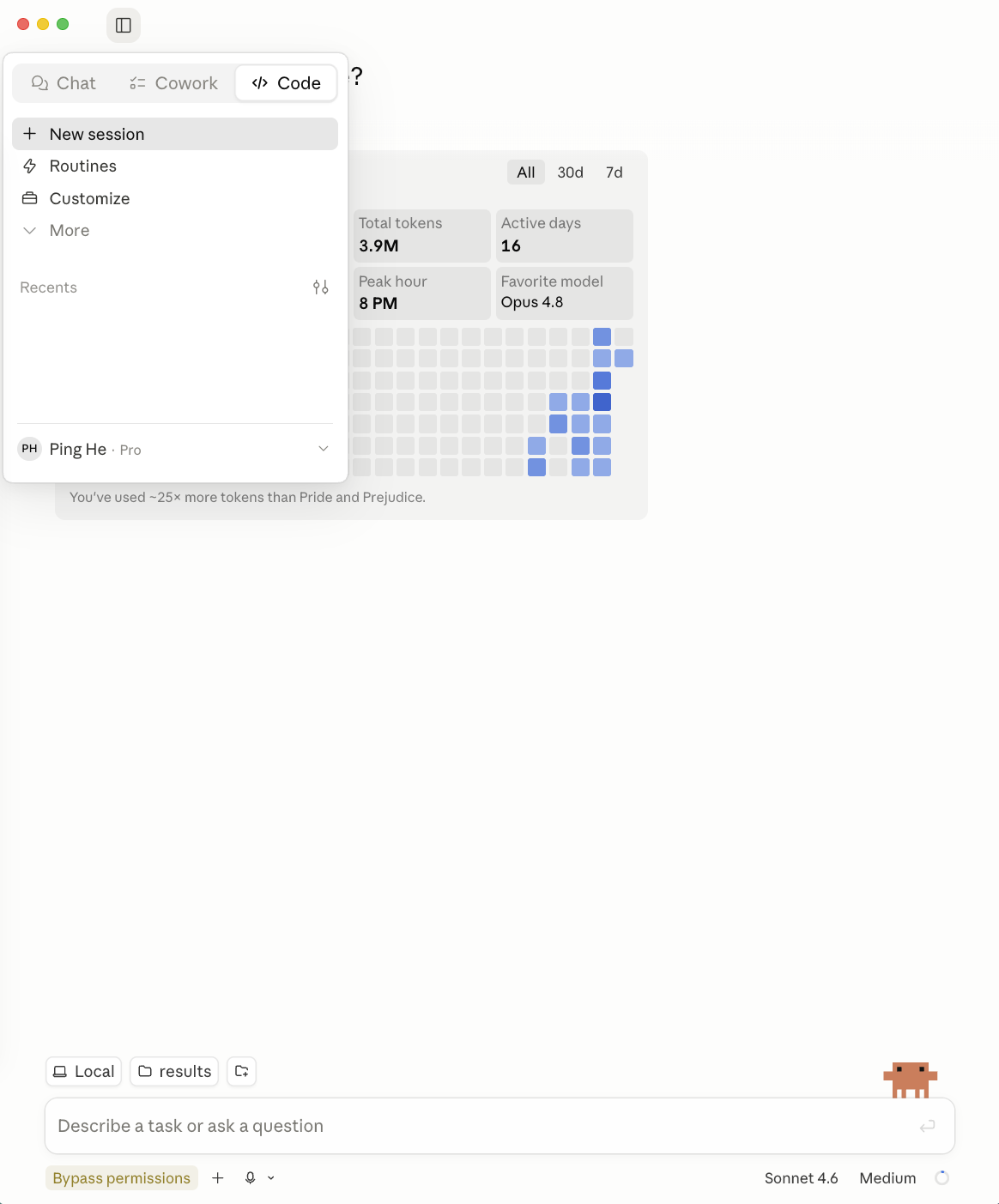
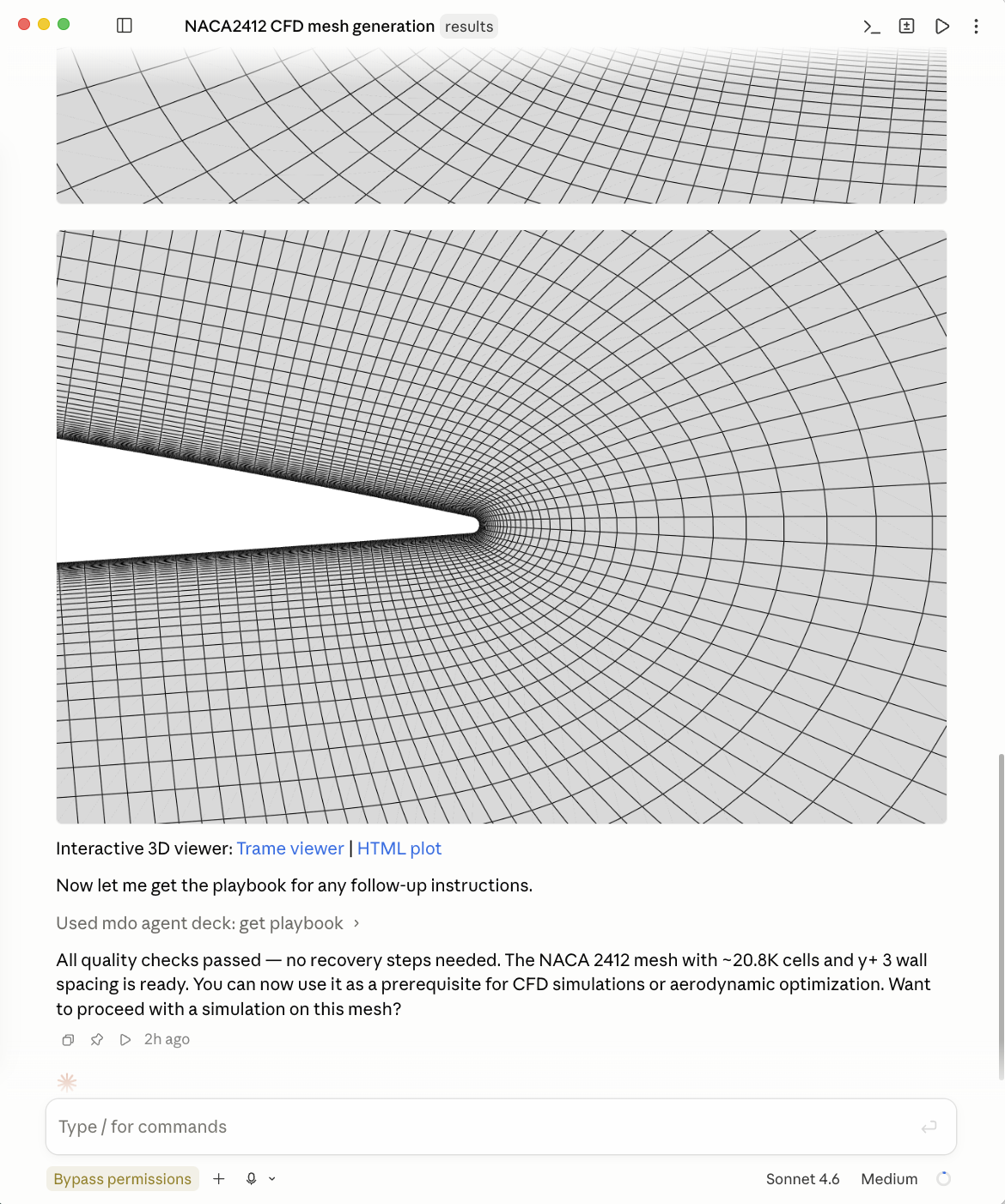
Fig. An example of the Claude Code interface
- Open VS Code.
- Click the “Explorer” icon in the left sidebar (see the figure below). Select “Open Folder” and open the
mdo_agent_workfolder as your working directory. - In the upper-right corner, click the LLM extension icon to open the extension window. Sign in if needed.
- In the LLM extension chat window, ask,
Is mdo_agent_deck's must_call_first tool available?Once the agent confirms the MCP status, you can ask questions such as,Generate a CFD mesh for the NACA2412 airfoil with 20K cells and yPlus 3. If it does not confirm the status, ask it to check again or close and reopen VS Code. The agent will run the case in the background.
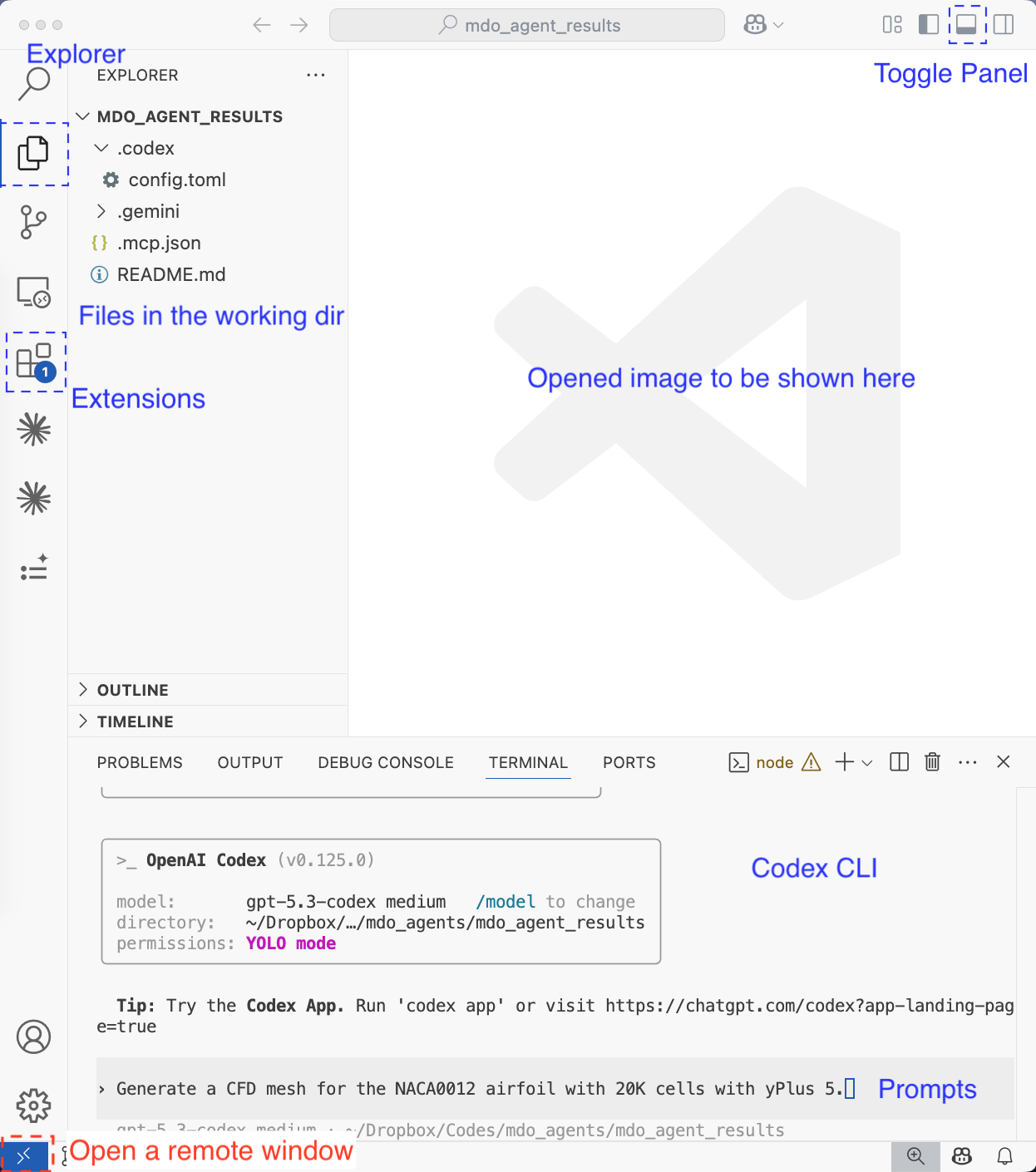
Fig. An example of the VS Code interface for Codex. Other LLMs have similar interfaces
-
Open VS Code. Then click the “Explorer” icon in the left sidebar (see the figure below). Select “Open Folder” and open the
mdo_agent_workfolder as your working directory. -
Click the “Toggle Panel” button in the upper-right corner to open a terminal (see the figure below). Then navigate to the
mdo_agent_work/resultsfolder in the terminal. IMPORTANT: Open themdo_agent_workfolder in Explorer, then use the terminal to navigate tomdo_agent_work/resultsbefore starting the LLM CLI. This is intentional and helps avoid conflicts with VS Code LLM extensions. You must start the LLM in themdo_agent_work/resultsfolder. The name of theresultsfolder can be arbitrary. If you need to run multiple cases, make copies of theresultsfolder insidemdo_agent_work, for example,mdo_agent_work/results1andmdo_agent_work/results2. -
Launch your LLM client in the VS Code terminal and sign in. Choose ONLY ONE of the following, depending on which LLM client you are using.
Codex:
codex --yoloClaude:
claude --dangerously-skip-permissionsGoogle Antigravity:
agy --dangerously-skip-permissionsCursor:
agent --yoloIMPORTANT: All of the above commands bypass permission prompts, so they may modify or damage system files. Use them with caution. If you prefer to grant permissions manually, run the LLM CLI without the
--yoloor--dangerously-skip-permissionsargument. -
In the LLM CLI chat window, run
/mcpand verify thatmdo_agent_deckisconnectedorrunning. If so, the agent is ready to run. -
You can ask something like,
Generate a CFD mesh for the NACA2412 airfoil with 20K cells and yPlus 5. The agent will parse your prompt into solver input arguments and run predefined commands to generate the mesh. It then returns clickable paths to mesh figures, along with a mesh summary. Hold Command (macOS) or Control (Windows) while clicking these paths to view the figures directly in VS Code (see the figure below). The agent also returns a clickable link to a Trame server for interactive mesh visualization, which you can open in your default browser.
NOTE: For the best visual experience, we recommend the “Light Modern” color theme in VS Code. To change the theme, open the Command Palette, search for “Preferences: Color Theme,” and select “Light Modern.”
Fig. An example of the VS Code interface for Codex. Other LLMs have similar interfaces
Mode B: HPC
This mode is intended for large-scale cases on an HPC cluster. In HPC mode, you must compile the DAFoam packages on the HPC system and launch the LLM client on the head node. The LLM client then submits jobs to compute nodes to run simulations and optimizations.
Step 1. Install an LLM Client
First, install an LLM client. Choose ONLY ONE of the following options: Desktop App or command-line interface (CLI).
Currently, only the Claude Desktop App supports remote HPC connections. In theory, all the CLI clients may also be used; however, many HPC systems do not support running an LLM CLI on their head nodes.
IMPORTANT!! You need to install Claude Desktop App on your local computer. If you use the CLI option, you must install the CLI on the HPC.
Follow the instructions below to install the Claude desktop app on our local computer. Currently, only the Claude Desktop App supports remote HPC connections.
- Claude (Anthropic; paid plan only): Download
Follow the instructions below to install one of the following LLM CLIs on the HPC. Installation steps may differ by operating system and may require additional dependencies, such as Node.js.
Step 2. Compile the agents and DAFoam on the HPC
Use SSH to log in to the HPC, then compile the DAFoam package from scratch. Follow the instructions here. In this example, we assume that DAFoam is installed in /home/your_user_name/dafoam and use this path in the instructions below.
After compiling DAFoam, load its environment, for example, . /home/your_user_name/dafoam/loadDAFoam.sh, then run the following command to install MDO Agent Deck:
pip install mdo_agent_deck
NOTE: The mdo_agent_deck package is hosted on PyPI. The command above installs the latest version. If you want to install an older version, pin it explicitly, for example pip install mdo_agent_deck==0.2.3, and make sure it matches the mdo_agent_work and Docker image versions you chose.
Then add the following line to your ~/.bashrc on the HPC to load DAFoam automatically when you log in.
. /home/your_user_name/dafoam/loadDAFoam.sh
Step 3. Create the working directory on the HPC
Use SSH to log in to the HPC, then download the mdo_agent_work repository here. NOTE: This link is DIFFERENT from the links for other modes.
Unzip the archive. You will see a folder named mdo_agent_work-hpc; rename it to mdo_agent_work. This will be the main working directory for your agents. You can place mdo_agent_work anywhere on the HPC, for example, /home/your_user_name/mdo_agent_work.
IMPORTANT: Do not manually create a folder to use as the LLM’s working directory. You must use mdo_agent_work because mdo_agent_work/results contains predefined LLM configuration files, which are hidden by default. You do not need to modify these files.
Step 4. Customize the HPC job submission script
Open mdo_agent_work/results/myHPCJob.sh and adjust the #SBATCH directives (walltime, nodes, cores, job name) to match your HPC cluster. Keep the filename as myHPCJob.sh, keep it in the mdo_agent_work/results/ folder, and always keep ./Allrun.sh as the last line of the script. This script will be used by the agent to submit jobs on your HPC.
Step 5. Test the agents
-
Open the Claude Desktop App and sign in.
-
In the top left, click the sidebar icon to expand it, then change the mode from “Chat” to “Code”.
-
Click the “Local” icon directly above the chat box and select “Add SSH Host.” In the pop-up, enter a “Name” (for example,
my_hpc) and the “SSH Host” (for example,my_user_name@myhpc.com). Leave the “SSH Port” and “Identity File” unchanged. Then click “Add SSH Connection.” -
Click the “Local” icon again and select the newly added SSH server, e.g.,
my_hpc. You will be prompted to enter your HPC account password and the verification code (if applicable). NOTE: The Claude app does not distinguish between the password and verification code prompts from your HPC, so the pop-up window will always say it needs a password. If it asks for the password twice, the second prompt is likely requesting your verification code. -
Once connected, click the button next to “Local” to “Browse Remote Folder,” then navigate to the
mdo_agent_work/resultsfolder. -
The agent is ready to use. You can ask something like,
Generate a CFD mesh for the NACA2412 airfoil with 20K cells and yPlus 5. NOTE: On the HPC, the agent submits jobs to run cases on compute nodes rather than head nodes. -
Once the task is complete, click the names of generated mesh images to view them in the app, or use the Trame or HTML server links to visualize the results. You cannot directly access the case folder in the Claude Desktop App. To view the files in the case folder, use a separate SSH connection to the HPC and navigate to
mdo_agent_work/results.
During agent execution, you may be asked for permission multiple times. To skip this, change the “Mode” below the chat box to “Auto mode”. IMPORTANT: The auto mode may modify or damage HPC system files. Use with caution!
In the following, we assume you use VSCode to connect to the HPC. If you prefer to use a termianl instead, the steps would be similar.
-
Open VS Code and use Remote SSH to connect to the HPC.
-
In VS Code, click the “Explorer” icon in the left sidebar (see the Fig. below). From there, select “Open Folder” and open the
mdo_agent_workfolder on the HPC as your working directory. -
Click the “Toggle Panel” button in the top-right corner to open a terminal (see the Fig. below).
-
In the terminal, navigate to the
mdo_agent_work/resultsfolder on the HPC. IMPORTANT: Open themdo_agent_workfolder in Explorer, then use the terminal to navigate tomdo_agent_work/resultsbefore starting the LLM CLI. This is intentional and helps avoid conflicts with VS Code LLM extensions. You must start the LLM in themdo_agent_work/resultsfolder. The name of theresultsfolder can be arbitrary. If you need to run multiple cases, you can make copies of theresultsfolder insidemdo_agent_work, e.g.,mdo_agent_work/results1andmdo_agent_work/results2. -
Launch your LLM client in the VSCode terminal on the HPC and sign in. Choose ONLY ONE of the following, depending on which LLM client you are using.
Codex:
codex --yoloClaude:
claude --dangerously-skip-permissionsAntigravity:
agy --dangerously-skip-permissionsCursor:
agent --yoloIMPORTANT: All the above commands bypass the permission, so they may modify or damage system files. Use with caution! If you prefer manual permissions, run the LLM CLI without the –yolo or –dangerously-skip-permissions argument
-
In the LLM CLI chat box, run
/mcpand verify if themdo_agent_deckisconnectedorrunning. If yes, the agent is ready to run. -
You can ask something like:
Generate a CFD mesh for the NACA2412 airfoil with 20K cells with yPlus 5. The agent will parse your prompt into solver input arguments and run predefined commands to generate the mesh, then return clickable paths to the mesh figures along with a summary of the mesh. You can hold the Command key (MacOS) or Control key (Windows) and click these paths to view the figures directly in VS Code (see the Fig. below). The agent will also return a clickable link for a Trame server to view the mesh interactively. You can open this server from your default browser by clicking the link.
Fig. An example of the VS Code interface for Codex. Other LLMs have similar interfaces
Mode C: Native
Native mode is similar to HPC mode, with one major difference: the agent runs simulations and optimizations directly instead of submitting jobs. Therefore, you must open the LLM client either on your local computer or on an HPC compute node.
Step 1. Install an LLM Client
Native mode supports ONLY the LLM CLI option.
The installation instructions are the same as those in Step 1. Install an LLM Client->Command Line Interface (CLI) under Mode A: Docker.
NOTE: Install the LLM CLI on your local computer if you want to run the agent locally. To run the agent on an HPC, install the CLI on the HPC head node.
Step 2. Compile the agents and DAFoam
Follow the same instructions in Step 2. Compile the agents and DAFoam on the HPC under Mode B: HPC. The instructions for installing DAFoam and the agents on your local computer are similar.
Step 3. Create the working directory
Use SSH to log in to the HPC, then download the mdo_agent_work repository here. NOTE: This link is DIFFERENT from the links for other modes.
Unzip the archive. You will see a folder named mdo_agent_work-native; rename it to mdo_agent_work. This will be the main working directory for your agents. You can place mdo_agent_work anywhere on the HPC, for example, /home/your_user_name/mdo_agent_work.
IMPORTANT: Do not manually create a folder to use as the LLM’s working directory. You must use mdo_agent_work because mdo_agent_work/results contains predefined LLM configuration files, which are hidden by default. You do not need to modify these files.
The instructions for creating the working directory on your local computer are similar.
Step 5. Test the agents
- On the HPC, first log in to an interactive session.
srun --nodes=1 --time=01:00:00 --pty bash -i
NOTE: Check your HPC documentation for instructions on requesting an interactive session.
- Once your interactive session is allocated, you will be logged in to an HPC compute node. Launch your LLM client in the terminal and sign in. Choose ONLY ONE of the following commands, according to the LLM client you are using.
Codex: codex --yolo
Claude: claude --dangerously-skip-permissions
Google Antigravity: agy --dangerously-skip-permissions
Cursor: agent --yolo
IMPORTANT: All of the above commands bypass permission prompts, so they may modify or damage system files. Use them with caution. If you prefer to grant permissions manually, run the LLM CLI without the --yolo or --dangerously-skip-permissions argument.
-
In the LLM CLI chat window, run
/mcpand verify thatmdo_agent_deckisconnectedorrunning. If so, the agent is ready to run. -
You can ask something like,
Generate a CFD mesh for the NACA2412 airfoil with 20K cells and yPlus 5. The agent will parse your prompt into solver input arguments and run predefined commands to generate the mesh.
Special Session: Locally Hosted LLM (No Internet and No Paid Plan)
This option works on macOS and Windows. It lets you run the agents with a locally hosted LLM, so no internet access or paid plan is required. Its main drawback is the need for a high-end GPU. The following setup has been tested on a MacBook with an M5 Pro chip and 24 GB of memory. These instructions assume that you use Docker mode; the instructions for the other modes are similar.
Step 1. Install Docker Desktop
Same as Step 2 in Mode A.
Step 2. Download the working directory
Same as Step 3 in Mode A.
Step 3. Download Ollama and Local LLMs
First, download Ollama, which hosts and runs local LLMs.
Once the download is complete, launch the Ollama desktop app and keep it running. Then click the Ollama app icon, select “Settings,” and set “Context length” to 64K.
We currently support three local LLMs: Qwen3.5, Gemma4, and GPT-OSS. Follow ONLY ONE of the following sets of instructions to install a model. These models have different parameter counts and memory requirements. Choose a model based on the GPU memory available on your system. We recommend starting with the 9-billion-parameter Qwen model.
Open a terminal and run ollama pull qwen3.5:9b to download the Qwen model with 9 billion parameters.
Next, customize the default qwen3.5:9b model. Go to the mdo_agent_work/results folder and run:
python .create_custom_model.py qwen3.5:9b qwen3.5-custom:9b --num_ctx 65536 --temperature 0.8 --top_p 0.8 --top_k 20 --min_p 0 --presence_penalty 0 --repeat_penalty 1.0
This creates a custom model named qwen3.5-custom:9b, which is used to run the agents. These settings cap maximum memory usage and improve the determinism and reproducibility of the agentic workflow.
If you want to use a Qwen model with a different parameter size, change the model name accordingly and always create a corresponding customized model before running the agents.
Open a terminal and run ollama pull gemma4:12b to download the Gemma model with 12 billion parameters.
Next, customize the default gemma4:12b model. Go to the mdo_agent_work/results folder and run:
python .create_custom_model.py gemma4:12b gemma4-custom:12b --num_ctx 65536 --temperature 0.8 --top_p 0.8 --top_k 20 --min_p 0 --presence_penalty 0 --repeat_penalty 1.0
This creates a custom model named gemma4-custom:12b, which is used to run the agents. These settings cap maximum memory usage and improve the determinism and reproducibility of the agentic workflow.
If you want to use a Gemma model with a different parameter size, change the model name accordingly and always create a corresponding customized model before running the agents.
Open a terminal and run ollama pull gpt-oss:20b to download OpenAI’s GPT-OSS model with 20 billion parameters.
Next, customize the default gpt-oss:20b model. Go to the mdo_agent_work/results folder and run:
python .create_custom_model.py gpt-oss:20b gpt-oss-custom:20b --num_ctx 65536 --temperature 0.8 --top_p 0.8 --top_k 20 --min_p 0 --presence_penalty 0 --repeat_penalty 1.0
This creates a custom model named gpt-oss-custom:20b, which is used to run the agents. These settings cap maximum memory usage and improve the determinism and reproducibility of the agentic workflow.
If you want to use a GPT-OSS model with a different parameter size, change the model name accordingly and always create a corresponding customized model before running the agents.
Optional checks: Before running the agents, you can verify that your hardware is powerful enough for the local LLM. Run ollama run qwen3.5-custom:9b --verbose if you use Qwen, or ollama run gemma4-custom:12b --verbose if you use Gemma4. After the model loads, ask a simple question, such as “Can you give me an overview of your understanding of CFD?” When the response is complete, check the eval rate, reported at the end in tokens/s. Performance is generally acceptable when this value exceeds 15. During this test session, you can also check VRAM and RAM usage with ollama ps, which reports GPU and CPU usage percentages. Ideally, GPU usage should be 100%. If it is not, the model is likely too large for your hardware, causing Ollama to offload inference to the CPU and significantly slow performance. The model should be smaller than 10 GB. When finished, exit the chat session by typing /bye or pressing Ctrl+C.
Step 4. Download an MCP Orchestrator
Once the local LLM is running, it must connect to the MCP server. We use the Claude Code CLI.
Download and install the Claude Code CLI here.
Step 5. Test the agents
Open a terminal, navigate to the mdo_agent_work/results/ folder, and run the following command. The bare argument minimizes Claude Code overhead when loading local LLMs.
ollama launch claude -- --bare --mcp-config .mcp.json --strict-mcp-config --dangerously-skip-permissions --verbose
The terminal will then ask you to “Select models.” Select your local LLM, for example, qwen3.5-custom:9b, gemma4-custom:12b, or gpt-oss-custom:20b.
You must complete the following checks before running a case:
- Check that the MCP server is running. Run
/mcpin Claude to view the available MCP servers. You should seemdo_agent_deck connectedin the pop-up window. PressEscto close it. - Check the active LLM. The active LLM is shown at the top and should display
qwen3.5-custom:9b,gemma4-custom:12b, orgpt-oss-custom:20b(see the following figure).
If all of the above checks pass, you can ask the agent to run a task, such as Call mdo_agent_deck MCP's must_call_first() tool. Then run a steady CFD simulation for the NACA2412 airfoil with 10K cells, Ma=0.3, Re=5e6, and AoA=2 degs. The agent will parse your request, generate the appropriate mesh, and run the CFD simulation.
IMPORTANT: Claude may take a few minutes to start the agentic workflow because it must preload the MCP information into context. Once the agent starts working, response speed should return to normal. Occasionally, Claude stops in the middle of a workflow; if this happens, manually ask it to “Continue” to proceed to the next step.
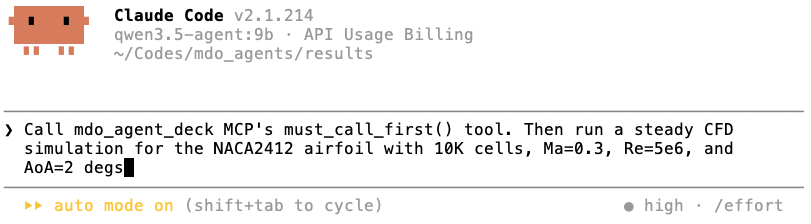
Fig. An example of the Claude interface for a locally hosted LLM