Overview
The MDO Agent Deck is an agentic AI framework for multidisciplinary design optimization (MDO). It exposes engineering workflows through an MCP server and orchestrates domain agents such as airfoil, wing, and aircraft. The MDO Agent Deck framework is not open source. Instead, it is distributed on PyPI as compiled shared library package for evaluation purpose. Check LICENSE for more details.
Trustworthy Agentic AI Framework for MDO
The framework is designed to be trustworthy for engineering using the following guardrails:
- Narrowly scoped, domain-specific agents.
- Strictly constrained input parameters per skill.
- A robust review-and-correction loop at each phase.
- Fully transparent, auditable, and reproducible execution workflows.
How the Framework Works
The following figure illustrates the overall architecture of the agentic AI framework for aircraft aerodynamic and aerostructural design. The framework follows a fixed workflow from a user prompt to the final engineering result. Based on the user’s prompt, the agent deck first selects the most relevant agent, skill, and scenario from the MDO Agent Deck database. Here we define domain-specific agents for narrowly scoped design problems involving airfoils, wings, and aircraft. Each agent is equipped with skills such as generating CFD meshes, running CFD simulations, and performing aerodynamic optimization. The scenario includes predefined workflows for common tasks, such as running one simulation with one skill, running multiple simulations with one skill, or running multiple simulations with prerequisite and downstream skills.
The agentic framework maximizes the use of predefined, deterministic steps while minimizing the agent’s reasoning effort to maximize reliability. In an end-to-end workflow, the agent is responsible only for deciding (blue text in the figure below): (1) which agent–skill pair to use, (2) which scenario to use, (3) what input parameters to provide for that scenario, and (4) how to follow the provided instructions to correct the scenario inputs if a skill encounters an error. All remaining steps in the workflow are fully deterministic.
To be more specific, the agent first interprets the user’s prompt and selects the skill and scenario that best match the requested task. It then reads the input descriptions associated with the selected skill and semantically maps the parameters specified by the user into the input format required by the scenario workflow. Before executing the workflow, the agent sends the selected skill, scenario, and parsed inputs to the workflow verification tool. This tool verifies that the selected skill and scenario are valid and, critically, that the parsed inputs are fully consistent with the user’s request. This verification step ensures that the agent does not omit, add, or modify any user-specified input in a way that could misrepresent the user’s intent. If the verification passes, the agent executes the predefined steps in the selected scenario workflow fully deterministically. Once the workflow is completed, the agent returns the final results to the user, including simulation figures, access to an interactive visualization server, and a summary of the completed case.
For example, if a user asks, Run a CFD simulation for the NACA2412 airfoil with 50K cells, Ma=0.3, Re=5e6, and AoA=2 degs, the framework will
-
Identify the
airfoilagent, therun-cfd-simulationskill together with its prerequisitegenerate-cfd-meshskill, and thesingle-skill-with-prereq-single-runscenario that best matches the request. -
Semantically parses the user-specified parameters into the scenario inputs as
airfoil_profile=naca2412,mach_number=0.3,reynolds_number=5e6,mesh_cells=50000, andangle_of_attacks=2. -
The workflow verification tool confirms that the selected agent, skills, scenario, and parsed inputs are valid and fully consistent with the user’s request.
-
Upon successful verification, the job is passed to the run-workflow tool, which first copies a case template from the agent’s assets folder and then executes the predefined commands for mesh generation and CFD simulation using the verified inputs.
-
If mesh generation or CFD simulation encounters an error, the issue is detected by the review components embedded in the predefined workflow. The agent then follows predefined post-context instructions to adjust only the necessary inputs, for example, by increasing mesh smoothing to address poor mesh quality or preparing a better initial condition to improve CFD convergence. The workflow is then re-executed according to the predefined procedure.
-
Once the run passes all required checks, the framework uses pre-defined scripts to generate the final results for the user, including a case summary containing $C_D$, $C_L$, and $C_M$, function and residual convergence histories, flow-field contours, pressure profiles, and an interactive visualization server for exploring the computed flow fields.
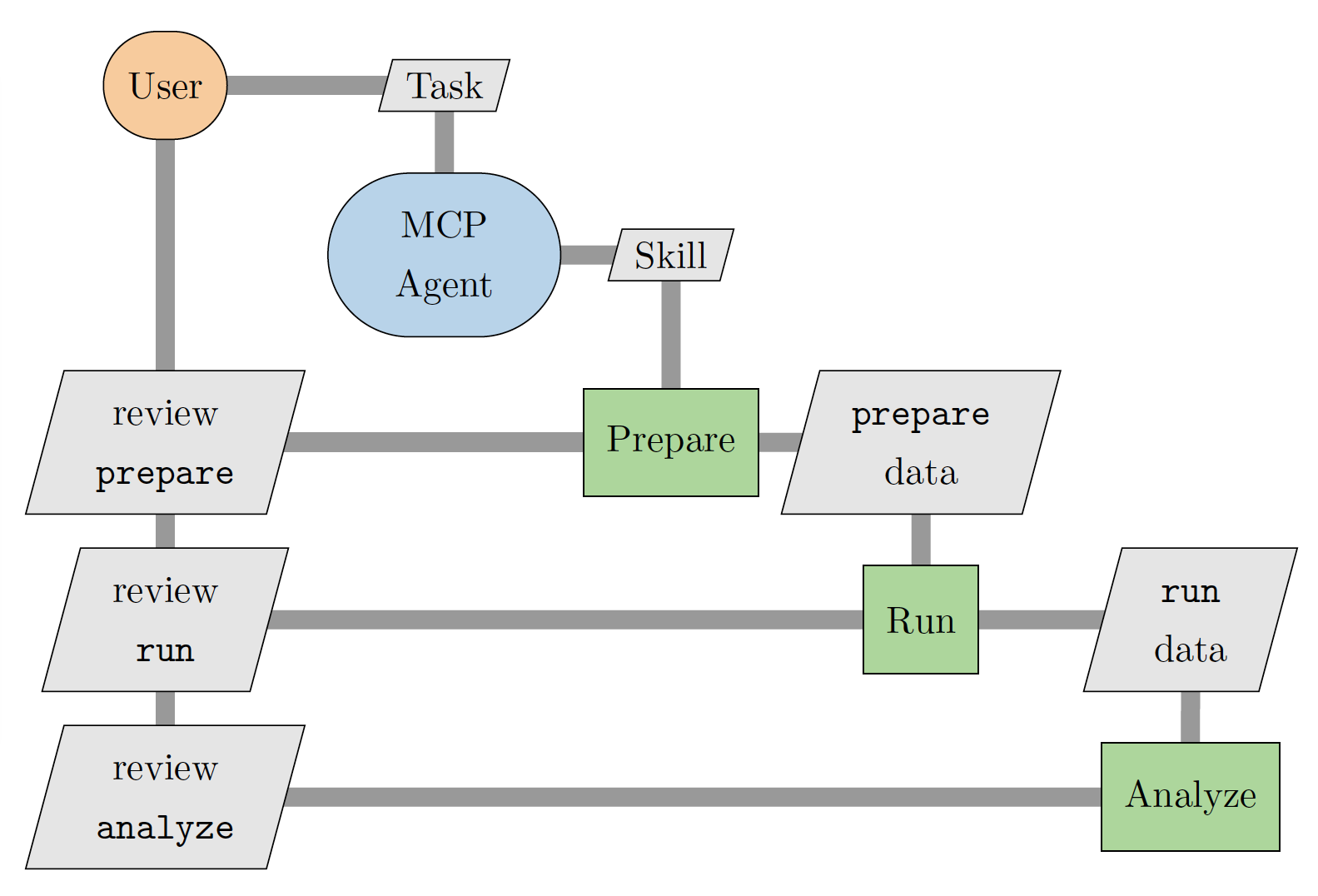
Fig. 1. Schematic of the agentic AI workflow
Transparency, Auditability, and Reproducibility
The framework records workflow and runtime context in the working directory. This design supports traceability, debugging, and reproducibility for engineering studies.
agent_workflow.json: auditable case-by-case phase history (set_skill_inputs,run,review_run,analyze,review_analyze) with timestamps and status.agent_state.json: persisted bindings (inputs and case directories) so sessions can resume after MCP server restarts.bash_*.sh: the agent generates abash_*.shscript for eachrunandanalyzephase, e.g.,bash_generate-cfd-mesh_run_001.sh. A user can easily reproduce the exact workflow the agent executed by running these bash scripts in sequence.
Reference
Ping He, Lean Fang, Jiawei Chen, Seth Zoppelt, and Christian Psenica. “Trustworthy Agentic AI for High-fidelity Aircraft Design Optimization.”, paper in preparation. 2026.